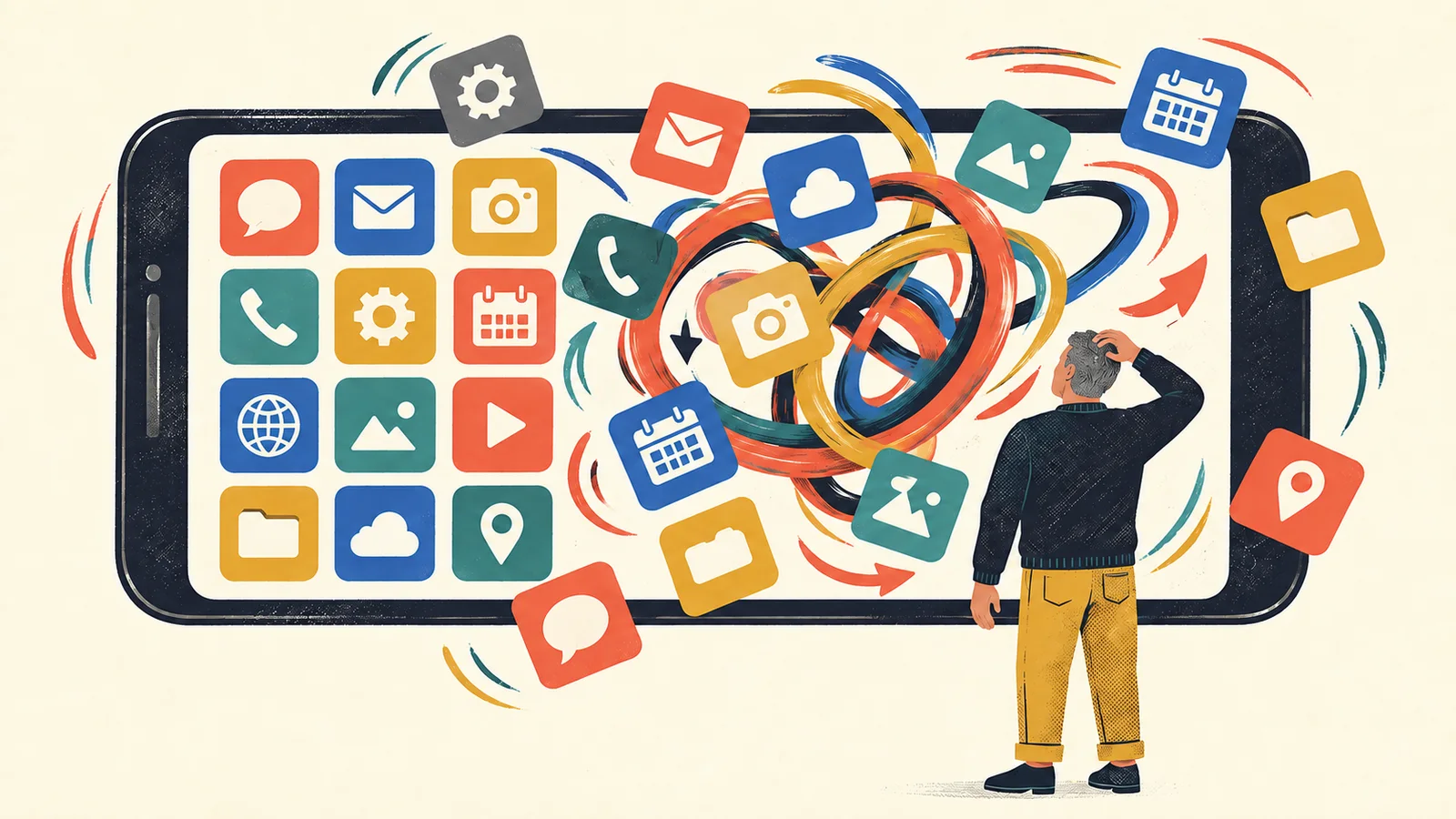
Every year, Apple and Google announce enough new phone features to make your current device sound practically antique.
Then the update arrives, you install it, and…your alarm still rings. Your group chat is still noisy. Your weather app still insists it might rain at exactly the moment you leave home.
This year’s updates—Apple’s iOS 27 and Google’s Android 17—do bring real changes. But the important ones are not necessarily the ones with the longest names or the flashiest demonstrations.
Here is the short version: your phone is becoming better at understanding what you mean, showing you less clutter, and doing small jobs across apps. It is also going to ask for more decisions about privacy, AI, and what information an app is allowed to see.
You do not need to learn everything. These are the changes you are most likely to notice.
The quick answer: iPhone users will notice a much more conversational Siri, stronger photo tools, and useful suggestions inside familiar apps. Android users will notice better multitasking, more flexible app windows and bubbles, and finer privacy controls. On both platforms, many AI features depend on your phone model, language, region, and account settings.
1. Talking to your phone may finally feel less awkward
The most obvious iPhone change is the new Siri AI. Apple says you can speak or type more naturally, ask follow-up questions, and let Siri use personal context from information already on your phone. For example, it may be able to find the email with your reservation, locate an old photo, or act inside apps such as Messages, Music, and Reminders.
There is also a dedicated Siri app that keeps conversations together, more like the AI chat apps people have grown used to using.
That sounds like a new Siri, because it is. But there are two reasons to keep expectations reasonable:
- Siri AI is rolling out first in English.
- Apple says usage limits may apply, and its most advanced intelligence features require supported hardware.
In other words, two people can install iOS 27 and come away with noticeably different phones.
On Android, Gemini is already woven through many newer phones, so Android 17 feels less like one dramatic assistant replacement and more like AI spreading into additional corners of the system. The practical question is no longer “Does my phone have AI?” It is “Can this particular AI feature use the app, account, or information I need?”
What you’ll actually notice: fewer rigid commands. You should be able to ask for things in ordinary language, make a correction, and continue instead of starting over.
What you can ignore for now: demonstrations in which the phone completes a complicated chain of tasks perfectly. Try the assistant first with low-stakes jobs—finding a photo, making a reminder, or drafting a message—before trusting it with anything important.
2. Your phone will offer to do the next little step
Both platforms are moving from “Here is your information” to “Would you like me to do something with it?”
In iOS 27, Messages and Mail can suggest actions based on a conversation, such as adding something to Reminders or Notes. During a call to a business, Call Context may surface relevant information from your apps—like an airline confirmation code—without making you hunt through your inbox while listening to hold music.
Apple is also making Shortcuts easier to create. Instead of building an automation one tiny block at a time, you can describe what you want in plain language.
Android has been traveling in the same direction through Gemini, live information, notification tools, and phone-maker additions. The exact result varies more on Android because a Pixel, Samsung Galaxy, and Motorola phone may share an Android version without sharing every feature.
What you’ll actually notice: more suggestion buttons appearing beneath messages, notifications, search results, or calls.
These can save time, but pause before tapping. A phone can misunderstand “Remind me about that next Thursday” just as easily as a person can. Check the date, recipient, and wording before it sends or saves anything.
3. Photos are becoming much easier to “fix”
On newer iPhones, iOS 27 expands Apple’s AI photo editing. You can reframe a picture after taking it, extend its edges, or remove larger unwanted objects with an upgraded Clean Up tool. The Camera can also enter a Siri mode so you can point at something and ask about it.
Android phones have offered similar ideas through Google Photos, Circle to Search, Gemini, and manufacturer-specific camera tools. Android 17 also includes platform improvements intended to make camera behavior smoother, although the result you see will depend heavily on the camera app and phone maker.
This is one of the update areas ordinary users may enjoy immediately. A crooked vacation picture can become usable. A stranger at the edge of a family photo may disappear. You may be able to identify an object without first taking a picture, opening another app, and uploading it.
There is one catch: an edited photo can still look plausible when the AI has invented a detail. That may be harmless in a picture of your lunch. It matters more in a photo documenting damage, a product defect, a medical concern, or an event.
A good rule: use AI editing for presentation, not evidence. Keep the original when accuracy matters.
4. Android multitasking is getting more useful—especially on big screens
Android 17 places extra attention on multitasking, foldables, and tablets. Apps can be easier to keep available in floating windows or bubbles, letting you briefly open a conversation or task without completely leaving what you were doing.
On a regular phone, that may mean replying to a message while checking a map or copying information between apps with fewer trips through the recent-apps screen. On a foldable or tablet, the difference can be much larger because there is enough screen space to keep several things visible.
This is a genuinely useful improvement for some people—and near-irrelevant for others.
If you normally do one thing at a time, there is nothing you need to learn. If you use your phone for travel, work, school, shopping comparisons, or coordinating family schedules, try opening a message alongside the information you are discussing. That is where the new behavior earns its keep.
5. Apps may have to ask for less of your personal information
One of Android 17’s quieter but more important privacy changes is more selective access to contacts. Instead of handing an app your entire address book, you may be able to share only the contacts it actually needs.
This is the sort of improvement that never looks exciting onstage and is wonderful in real life. A delivery, social, shopping, or photo app rarely needs to know everyone you have ever saved—including doctors, coworkers, relatives, and the plumber from 2018.
Both iPhone and Android will continue showing permission prompts for contacts, photos, location, microphones, cameras, local networks, and other data. The useful change is that “allow” increasingly does not have to mean “allow everything forever.”
When an app asks, choose the smallest permission that lets it work:
- Selected photos instead of the whole library
- Approximate location instead of precise location
- While using the app instead of all the time
- Selected contacts instead of the complete address book
If the app genuinely needs more later, it can ask again.
6. Parents will see more controls—but not automatic parenting
iOS 27 adds and expands several child-safety tools. During setup, parents can choose which system apps a child may use. A feature called Ask to Browse lets a child request access to a new website, while expanded Communication Safety is designed to intervene before children view or share certain sensitive, violent, or graphic content. Parents can also create time allowances by category and different schedules for different times or days.
Android continues to combine system controls with Google’s Family Link tools, and availability varies by device and account type.
These controls can reduce daily negotiation: the phone remembers that games are unavailable during homework time, so a parent does not have to repeat it every evening. But filters can make mistakes, and children can encounter material in unexpected places.
Treat the controls as guardrails, not a substitute for conversation. After updating, review them with your child so the first explanation of a blocked page does not happen in the middle of an argument.
7. Some of the best improvements will be almost invisible
Apple lists improvements to memory use, search, display rendering, and processor use in iOS 27. Android 17 also contains performance, compatibility, privacy, and security changes that will never become a button on your Home Screen.
These invisible changes are often the best reason to update. A phone that runs a little more smoothly, blocks a new scam technique, or gives an app less unnecessary access is more valuable than an animated icon you admire once.
Do not expect an older phone to feel brand new, however. Major updates can expose aging batteries, tight storage, and apps that have not yet been optimized. A day or two of warmth or faster battery drain can also happen after an update while the phone re-indexes photos and files.
Will your phone get all of this?
Probably not—and that sentence belongs in every big phone-update announcement.
Apple says iOS 27 supports iPhone 11 and newer, along with the iPhone SE (second generation and later). But support for the operating system does not mean support for every AI feature. Newer intelligence features can require newer chips, a supported language, and particular settings.
Android 17 reached supported Pixel phones first. Other Android manufacturers choose their own eligible models, schedules, interfaces, and feature sets. Your Samsung or Motorola phone may receive Android 17 months after a Pixel, and some Google features may arrive separately through app or system-component updates.
To check without guessing:
- iPhone: Open Settings → General → Software Update.
- Android: Open Settings → System → Software updates. The wording may differ by manufacturer.
Do not use a random “update” link from a text message, email, or pop-up. Install system updates through Settings.
Before you tap Update
You do not need a weekend project. Give yourself ten quiet minutes first:
- Back up the phone. Confirm that your recent photos and important files exist somewhere else.
- Check free storage. A nearly full phone is more likely to make the process unpleasant.
- Update important apps. Banking, authentication, work, school, and health apps deserve priority.
- Know your passcode and account password. Biometrics may not be enough after a restart.
- Avoid updating just before travel or an important event. Let someone else discover the first-day bugs.
Waiting several days for an ordinary major update is reasonable. Waiting indefinitely is not, because security fixes matter. If Apple, Google, your phone maker, or a trusted security authority says an update fixes an actively exploited vulnerability, install it promptly.
The five-minute tour after updating
Once the phone restarts, do not wander through every Settings menu. Check these five things:
- Make a call and send a message.
- Open the camera and confirm that photos save normally.
- Check your most important notifications.
- Review new privacy or AI prompts instead of accepting them automatically.
- Try one genuinely useful new feature.
For an iPhone, that might be asking Siri to find a specific email or photo. For Android, it might be testing a floating app bubble, sharing only selected contacts, or using two apps together.
Then stop. You do not owe your phone a guided tour.
What this update is really about
Apple and Google are trying to turn the phone from a collection of apps into something closer to an assistant that understands the task connecting those apps.
That can be useful. It can also make the boundaries less obvious. If your phone drafts a message using information from an email and sends it through another app, you should know which service saw what—and you should remain the person who approves the final action.
So yes, your phone is changing again. The icons and menus are only the surface. The bigger change is that the device increasingly wants to interpret, suggest, create, and act.
Let it handle the small annoyances. Keep your hand on the important decisions.
Sources and update notes
This article was fact-checked on September 15, 2026. Feature availability can vary by device, language, region, account, app, and phone manufacturer.