
Your iPhone still gets through most days. For a longer outing, you bring a power bank. Then you notice that Maximum Capacity has reached 80%, and an arrangement that seemed perfectly workable starts to feel like borrowed time.
You can keep using an iPhone with battery health at 80% if its runtime and reliability still meet your needs and there are no signs of physical battery damage. There is no dependable countdown to 79%, and that next percentage point does not suddenly make the phone unusable.
What matters is whether keeping the old battery still works for you—and what you would gain by replacing it.
What 80% tells you, and what it cannot
Maximum Capacity compares how much charge the battery can hold with its capacity when new. It is different from the charge percentage at the top of the screen: an aging battery can still charge to 100%, but that full charge represents a smaller supply of energy. It does not promise exactly 80% of the hours you remember getting from the phone, because your apps, signal and usage also affect runtime. Apple explains maximum capacity and battery performance here.
The underlying change is chemical aging. As a lithium-ion battery ages, it holds less charge and can become less able to supply a sudden burst of power. Temperature history and charging patterns matter alongside elapsed time. Good habits can slow wear; they cannot restore the capacity already lost. Apple’s battery-maintenance guidance describes those influences.
The number is Apple’s estimate, not a schedule. It may stay at 80% for a while or change soon; nothing on the screen tells you when. No one can honestly tell you how long your phone will stay at 80%. See Apple’s explanation of battery-health reporting.
You may also have seen Apple’s cycle-life figures:
- iPhone 14 and earlier: designed to retain 80% of original capacity at 500 complete charge cycles under ideal conditions.
- iPhone 15 and later: designed to retain 80% at 1,000 complete cycles under ideal conditions.
These are design targets, not a forecast. A cycle is a full battery’s worth of use, not a trip to the charger: half the battery today and half tomorrow add up to one cycle. Apple explains how cycles accumulate.
If it falls to 79%, check the phone—not just the number
There are three separate questions here: does the battery need attention, is its performance inconvenient, and will someone cover the service cost?
For the first, open Settings → Battery → Battery Health & Charging on an iPhone 14 or earlier, or Settings → Battery → Battery Health on an iPhone 15 or later with iOS 17.4 or later. Read any service recommendation as well as Maximum Capacity. Apple lists these model-specific paths.
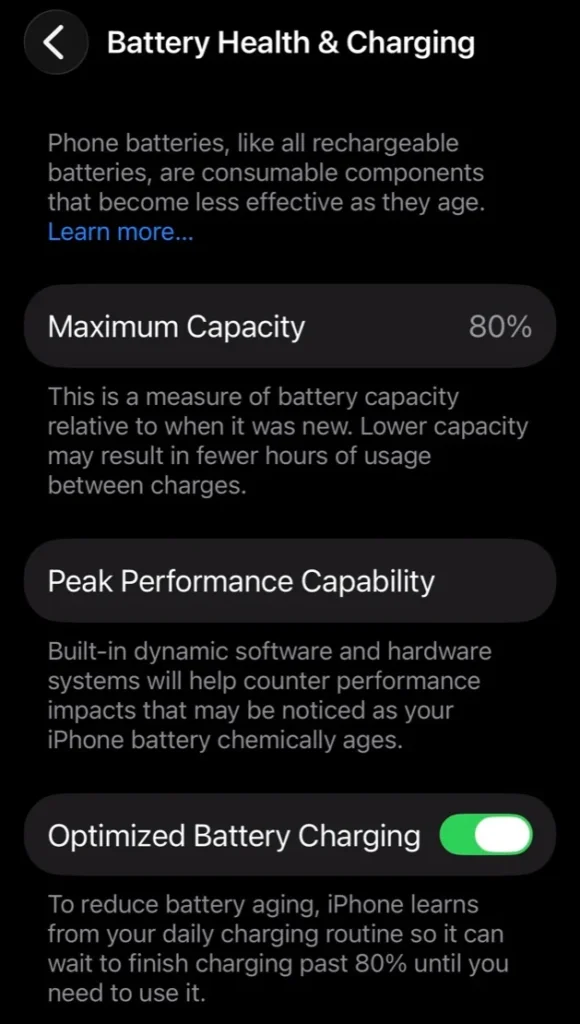
Apple says its significantly degraded battery-health message does not itself indicate a safety issue, although battery life and performance may suffer. That leaves room to keep using a phone that remains dependable. Repeated unexpected shutdowns deserve a service assessment, even if the percentage has not crossed a particular line. Apple describes both conditions.
Physical damage is a different matter. If the phone appears swollen, its screen is lifting, or you otherwise suspect battery damage, stop using it and arrange professional assessment. Do not wait for a lower health reading. Apple’s safety guidance says to discontinue use when battery damage is suspected.
AppleCare’s battery benefit starts below 80%. If you already have active coverage that includes battery service, Apple says it will replace the battery at no extra charge once capacity drops below 80%. So 80% itself doesn’t qualify, and 79% is the point to ask Apple to check. Apple makes the final call. Check Apple’s service terms and your coverage.
Without that coverage, 79% isn’t a deadline, and 75% isn’t a promise that all is well. What matters is how the phone behaves. A phone that reliably lasts until bedtime is a different decision from one that shuts down while you’re trying to get home.
Protect what is left without making charging a second job
Start with heat. Apple advises avoiding use or charging in ambient temperatures above 95°F (35°C) because that can permanently reduce battery lifespan. Keep the phone out of a hot parked car and direct sun. If it gets hot while charging in its case, remove the case and let it cool. Apple’s temperature advice and case guidance put this ahead of elaborate charging rituals.
Next, leave Optimized Battery Charging enabled. It learns your routine and delays charging beyond 80% in certain situations, aiming to finish before you unplug. Its job is to reduce time spent fully charged, not to hold Maximum Capacity at 80%.
The controls differ by model:
- iPhone 14 and earlier: go to Settings → Battery → Battery Health & Charging for Optimized Battery Charging. These models do not have the newer manual Charge Limit control.
- iPhone 15 and later: go to Settings → Battery → Charging. You can choose a limit from 80% to 100% in five-point increments. Optimized Battery Charging is available when the limit is 100%.
Those are Apple’s documented charging options. Choose a lower limit only if the available runtime suits you. For someone already needing an afternoon top-up, giving up more starting charge may be an unhelpful trade.
Overnight charging is fine: the iPhone stops charging when it’s full. Heat and long hours at 100% still add some wear, so leave Optimized Battery Charging on and charge somewhere cool. There’s no need to set an alarm to unplug. Apple explains overnight charging here.
Partial charging is fine, and there is no need to drain the battery to zero before plugging in. Repeatedly doing so is not a maintenance routine Apple asks you to perform. Its lithium-ion guidance explicitly allows charging whenever you need it.
Charging to 100% before a demanding day is a reasonable choice. The aim is a useful phone with less avoidable wear, not perfect adherence to a percentage range. These habits address long-term deterioration; reducing brightness or switching on Low Power Mode addresses how long today’s charge lasts.
Use the next outing to judge whether your routine still works
A power bank for a long day does not, by itself, mean the battery needs replacing. The useful test is whether that backup feels like occasional preparation or constant dependence.
Before a short trip, charge both the phone and the power bank, and test the cable you will bring. iPhone 14 and earlier charge through Lightning; iPhone 15 and later use USB-C. If you set a lower Charge Limit on a supported model, raise it for the trip when you need the extra starting charge. If Optimized Battery Charging is delaying a needed full charge, Apple’s instructions let you touch and hold its Lock Screen notification and tap Charge Now. See Apple’s charging controls.
Then make a few preparations that preserve the phone’s usefulness:
- Turn on Low Power Mode before you are nearly empty. On current software, use Settings → Battery → Low Power Mode for iPhone 14 and earlier, or Settings → Battery → Power Mode → Low Power Mode for iPhone 15 and later. It reduces background activity, including mail fetching and automatic downloads. The battery icon turns yellow. Charging to 80% or higher switches it off, so check again after a substantial top-up. Apple documents the controls and tradeoffs.
- Download the area you will need in Apple Maps. Offline maps require iOS 17 or later and are available only in select areas. Search for your destination, tap it, then choose Download, or More → Download Map, and include enough surrounding area. Check the download before leaving Wi-Fi. It supports offline directions, but does not eliminate the power needed for navigation or the screen. Apple explains offline-map availability and downloads.
- If you use Google Maps, download your area there too. While connected to Wi-Fi and outside Incognito mode, tap your profile picture or initial → Offline maps → Select your own map, frame the area to cover your entire driving route, then tap Download. Check that the download has finished before leaving. Offline downloads aren’t available everywhere. Google Maps provides offline driving directions within the downloaded area, but not walking, cycling or transit directions; traffic information and alternate routes also need a connection. Google explains offline downloads on iPhone.
- Use a comfortable screen brightness and reliable Wi-Fi when available. Poor cellular coverage can add drain. Airplane Mode can reduce searching, but it interrupts normal cellular calls and messages; do not use it casually when you need to be reachable. Apple’s runtime advice covers brightness, Wi-Fi and low signal.
While navigating, keep the phone out of direct sun and use the display when you need it. Connect your power bank while you still have a usable reserve rather than waiting for a shutdown. If the phone becomes hot, move it somewhere cooler and pause charging while it cools. The objective is to arrive with enough power for directions, calls and whatever you need for the return journey.
If charge suddenly disappears much faster than usual, investigate before assuming ordinary aging explains everything. Our guide to finding what is draining your phone’s battery shows how to read the usage report and look for an unusually busy app, screen use or weak signal.
What a professional replacement buys you
If the battery is the main problem and you want to keep the phone, replacement is often the most sensible next expense. You retain a familiar device and address the worn component directly.
For example, Apple’s U.S. estimator showed $99 for iPhone 14 Pro battery service when checked on November 5, 2026. Prices vary by model. That is an out-of-warranty estimate, not a guaranteed total. Tax, applicable shipping and any other necessary repairs can increase the bill; Apple inspects the device before confirming the final fee. Check your model and region in Apple’s battery-service estimator before booking.
A replacement can restore capacity lost to battery wear and help when aging has limited power delivery. It cannot repair a damaged charging port, create more storage, improve cellular coverage or turn the phone into a newer model. If an app is consuming excessive power, a fresh battery does not remove the cause. It also does not guarantee another year—or several years—of trouble-free ownership.
Here is an illustrative cost-per-additional-year comparison, not a lifespan prediction: if a $99 replacement lets you comfortably keep the phone for two additional years, the battery expense works out to $49.50 per year, before tax or other charges. If you keep it for only one additional year, it is $99 for that year. Use your actual all-in quote and a realistic ownership plan; the extra years are the assumption, not something the repair promises.
Choose the provider as well as the price:
- Apple: direct service with genuine parts. Apple guarantees service and replacement parts for 90 days or the remaining Apple warranty term, whichever is longer, alongside applicable consumer-law and AppleCare rights.
- Apple Authorized Service Provider: Apple-authorized service; ask for its quote. Out-of-warranty fees can differ from Apple’s estimate.
- Independent repair shop: ask which battery it will install, whether the repair will be completed and verified for your model, and what its own warranty covers. Participating Independent Repair Providers can obtain genuine Apple parts. Their repairs are covered by their own applicable warranty rather than Apple’s warranty or AppleCare.
Apple’s service page explains the official guarantee and pricing differences; its genuine-battery guidance explains independent-provider access and warranty distinctions. Independent does not automatically mean nongenuine.
Battery replacement calls for a trained technician. Poor parts or installation can cause fit, performance or safety problems, and an unverified battery can make health reporting inaccurate. Opening the phone can also affect water resistance. Ask how the shop handles repair completion and sealing rather than assuming every professional repair has identical terms. Apple discusses battery-part risks and servicing precautions.
When to keep going, and when to book service
For the reader whose iPhone still lasts most of the day and needs a power bank only on outings, keeping it is reasonable. Use charging optimization, avoid heat and prepare for heavier days. An occasional top-up can be an acceptable compromise, especially if you already plan to replace the phone soon.
Book a battery assessment when ordinary days require charging stops you resent, the phone shuts down unexpectedly, or you cannot rely on it for the things you carry it to do. If the rest of the phone works well and you want to keep it, get a professional replacement quote before shopping for a new handset. With applicable AppleCare coverage and capacity below 80%, check the battery-service benefit.
Consider upgrading when the battery is only one of several costly problems, the phone no longer supports what you need, or the combined repair bill makes little sense for how long you intend to keep it.
You do not have to wait for 79% to ask about paid service, and you do not have to replace a dependable battery because one digit changed. The point to act is when the phone’s condition or the work required to keep it useful no longer fits your life.